
Invoice AI is not magic accounts payable. It is a pipeline: the PDF has to land in the right folder, fields have to be confirmed, someone still has to approve spend, and the file has to stay searchable after close. The wider map is what AI document processing is. This article is the finance example—what to extract, what to refuse to auto-pay, and how that sits in a DMS rather than a spreadsheet in Downloads.
"If the model is allowed to invent a PO number, you did not automate invoices. You automated a future duplicate payment."
Confirm before you routeWhat is actually slow today
Most AP delay is not “the AI isn’t smart enough.” It is:
- Invoices arriving as email attachments and dying in one person’s inbox.
- Someone retyping vendor, invoice number, date, and total into a sheet or ERP.
- Approvals happening in chat, so month-end cannot prove who said yes.
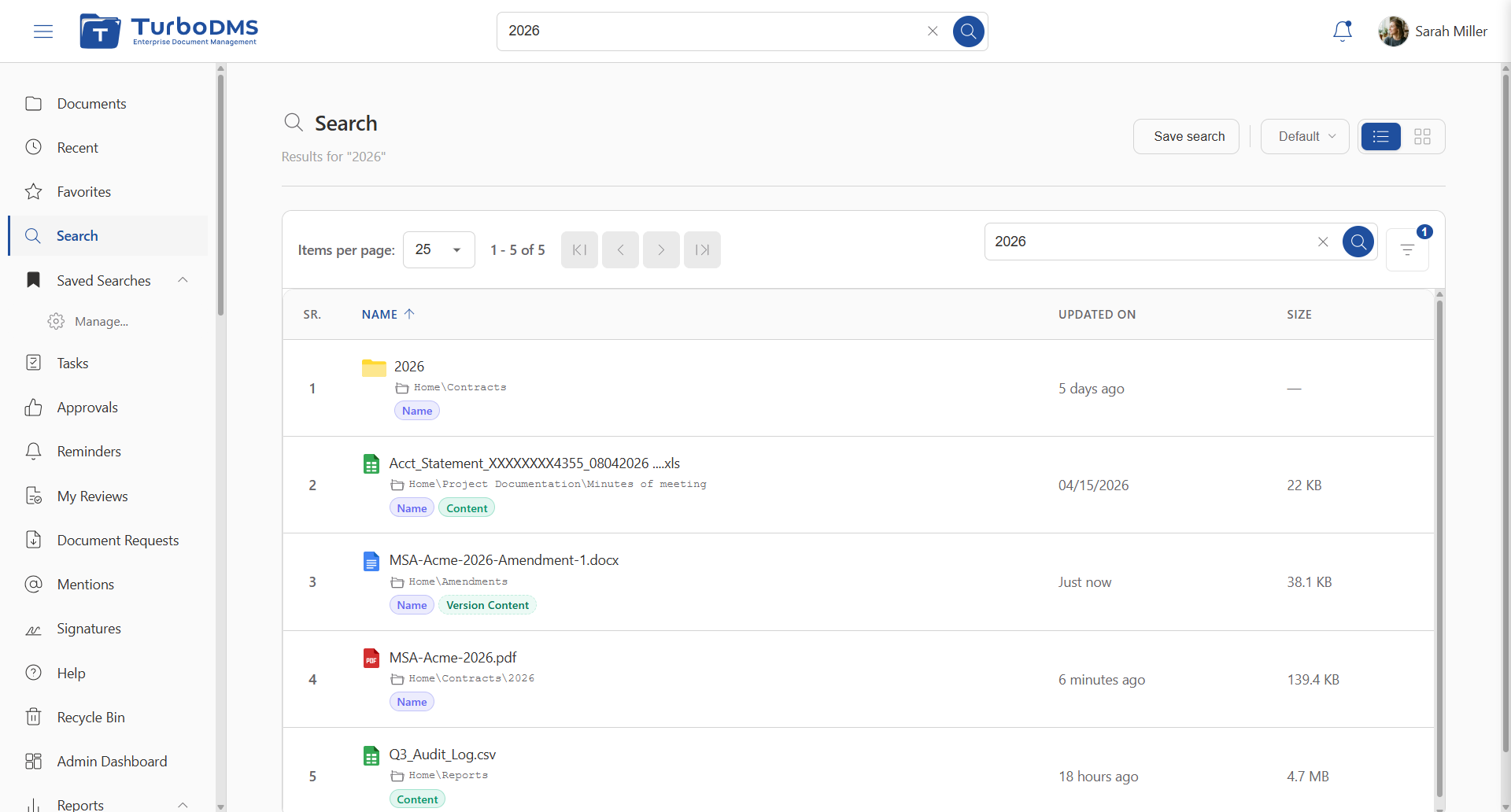
- Scans that are not indexed, so “find invoice 8841” means opening PDFs.
A document management system can take the file, the text, the metadata, and the approval log. It is not the general ledger. Do not buy a DMS expecting it to post payments; buy it so the PDF and the evidence live together. Capture options: email-to-folder. Search: full-text search and OCR.
The pipeline (in order)
- Capture — vendor emails a PDF to an AP ingest address, someone uploads a scan, or a form packet includes an invoice. The file should hit an Accounts Payable folder, not a desktop.
- Read — OCR if it is a scan; native text if it is a born-digital PDF.
- Extract — AI fills vendor, numbers, dates, amounts as metadata on that record. Treat them as suggestions.
- Confirm — a person (or a strict rule) accepts or corrects fields. Missing PO or unreadable total goes to exceptions, not to “best guess.”
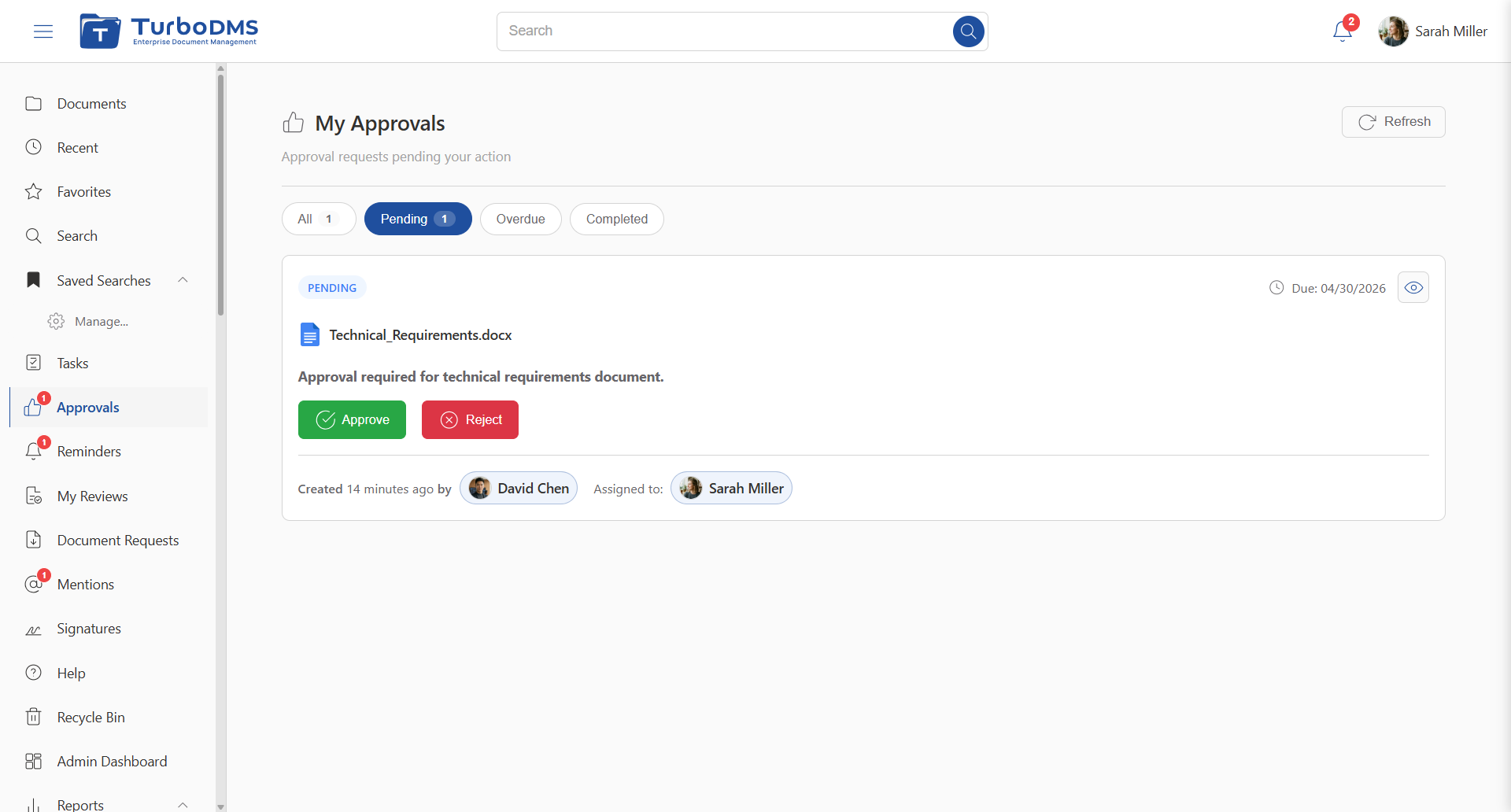
- Route — amount ≤ cap → manager; above → manager then finance. Roles, not named people. See document approval workflows.
- File — approved PDF stays in AP with version history and the audit trail. Retention follows your invoice keep period, not “forever in email.”
Skip step 4 and you have a demo. Skip step 6 and you have a faster mess.
Fields worth extracting (and what “good” looks like)
Start with the header. Line items are useful later; they are also where models hallucinate quantities on messy scans.
| Field | Why AP needs it | If extraction fails |
|---|---|---|
| Vendor name | Match the supplier master / folder | Exception: do not create a new vendor from a guess |
| Invoice number | Duplicate check against prior files | Hold; search the library for lookalikes |
| Invoice date / due date | Aging and early-pay windows | Use file date only as a last resort, and flag it |
| PO number | Tie to a purchase you already approved | Route as non-PO spend with a higher approver |
| Currency, tax, total | What you will actually pay | Never round or invent tax; send to a human |
In TurboDMS, AI document processing runs on the repository: OCR search, auto-tag and metadata fill, optional summaries, configurable PII redaction on upload, and a hook into workflows. Confirm money fields before the workflow counts as “approved to pay.”
Exceptions you should design before go-live
Happy-path invoices are boring. The process lives or dies on the ugly ones:
| Exception | Do not | Do |
|---|---|---|
| Duplicate invoice number for the same vendor | Pay because the PDF looks new | Search the DMS, attach the prior file, reject or credit |
| Amount over the manager cap | Let the first approver “just click” | Second step to finance; SLA on the extra step |
| Phone photo, stamp over the total, mixed languages | Trust a low-confidence total | Request a rescan; keep the original as a version |
| No PO on a PO-required vendor | Key a PO from memory | Exception queue with a required comment |
Test the trial with your worst three invoices, not the vendor’s clean sample. If those three fail extraction, you still need capture, search, and workflow—the AI is a speed-up, not the product.
A starter AP path you can copy
- Trigger: PDF lands in Accounts Payable (upload or email-to-folder).
- AI fills vendor, invoice number, date, total. Reviewer confirms or sends to exception.
- If total ≤ cap → AP manager. If above → manager then finance. 24-hour SLA per step, escalate to a backup role.
- Approved copy stays in the AP folder with the log. Rejected copy returns with a required comment; version history keeps both.
That map is the same pattern as the invoice example in the workflow guide. Clone it; do not start with a 40-step “procure-to-pay transformation.”
Where TurboDMS fits—and where it does not
TurboDMS is a document management system with OCR search, AI tagging/metadata, TurboWorkflow approvals, retention, and audit trails. Use it so invoices are findable, permissioned, and approved on the record. Posting to the ERP, three-way match against receiving, and bank files remain AP/ERP work unless you integrate them on purpose.
If you are still choosing software, score invoice AI as one row on how to choose document management software. A 14-day trial (no credit card) is enough to drop three real invoices into a folder and see whether search and an approval log exist after extraction. Start a trial or read pricing.
Frequently asked questions
Can AI fully automate invoice processing?
It can remove most retyping and filing for clean PDFs. It should not auto-pay. Treat extracted vendor, amount, and PO as suggestions until a person or workflow confirms them, then post to the ERP from a process you already trust.
What invoice fields should AI extract?
Vendor name, invoice number, invoice date, due date, PO number if present, currency, tax, and total. Add line items once headers are reliable. If a field is missing or the scan is unreadable, route to exceptions instead of guessing.
Is a DMS the same as accounts payable software?
No. A DMS stores, searches, versions, and routes the invoice file. AP or ERP software posts the payment. TurboDMS is the document system—not the general ledger.
The bottom line
Automating invoices with AI means capture → extract → confirm → approve → keep. Skip confirmation and you will pay duplicates. Skip the DMS and you will retype faster into a folder nobody can search. Put the PDF, the fields, and the approval on the same record; let the ERP stay in charge of money.