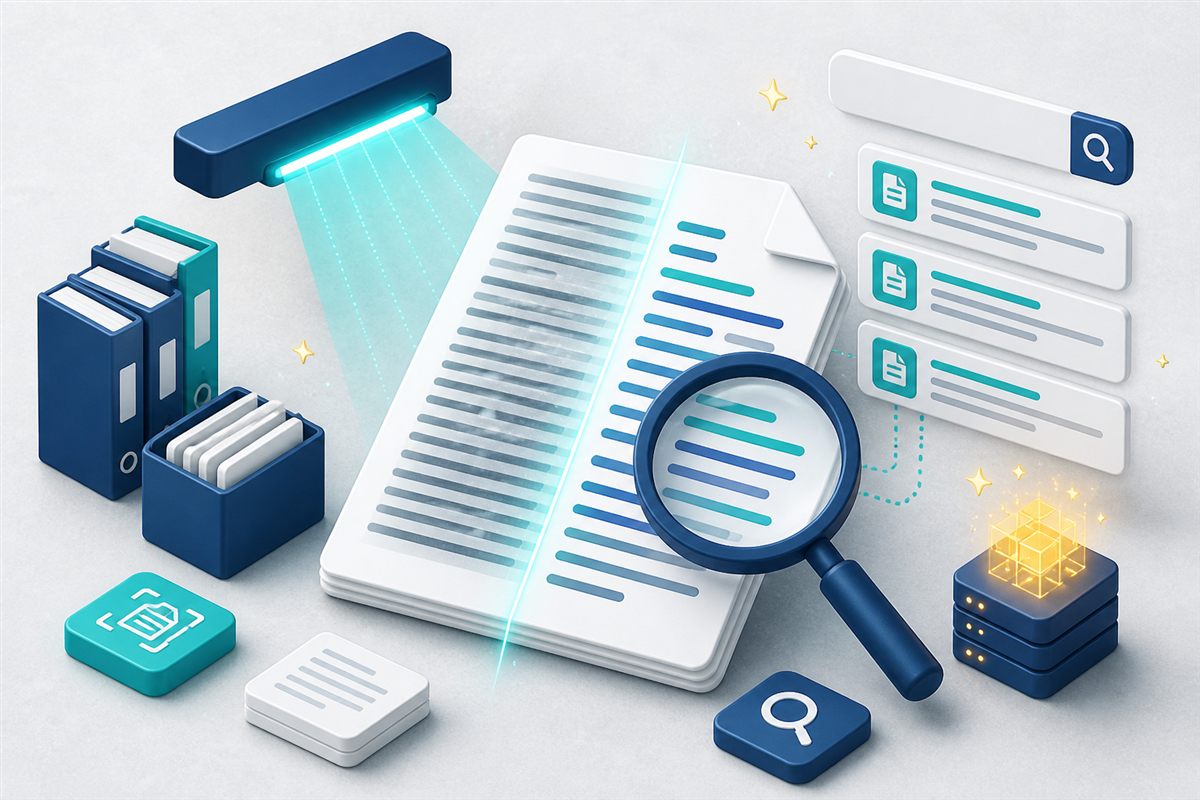
If finding a document means guessing the folder path or remembering who named the file, your library has outgrown browsing. Full-text search flips that model: you type words that appear inside the document—a clause, a vendor name, an invoice number—and the system returns matches.
For scanned paper and image-based PDFs, that only works when OCR (optical character recognition) extracts text during indexing. Together, full-text search and OCR are among the highest-ROI features in a modern document management system.
"A file you cannot find might as well not exist—until an auditor asks for it."
Practical truth in records-heavy teamsFilename Search Is Not Enough
Browsing and filename filters fail in predictable ways:
- Inconsistent naming. One person uses client codes; another uses project nicknames.
- Scanned packets. A multipage scan often has a generic name like Scan_0042.pdf.
- Deep folder trees. People stop filing carefully once the hierarchy becomes tribal knowledge.
- Hand-offs. New hires inherit a structure they never learned, so they ask Slack instead of searching.
How Full-Text Indexing Works
When a document is uploaded, a background process extracts text (from Word, PDF, and similar formats), tokenizes it, and stores it in a search index. Later queries match those tokens—often with filters for date, type, folder, or creator—so results stay relevant as libraries grow.
Good systems also index form field values and metadata, so you can find records by structured data as well as free text.
Where OCR Fits In
Office files already contain text. Scanned PDFs and images do not—until OCR reads the page images and produces searchable text. That is why a DMS with OCR is essential for teams that still receive paper, faxed packets, or phone photos of documents.
OCR quality depends on scan clarity, language, and layout. Very large multipage scans may also hit practical processing limits in cloud environments; those files can still be stored and previewed, but may only be partially searchable. Cleaner scans and reasonable page counts produce better results. For a forward look at classification on top of OCR, see The Future of OCR.
Practices That Make Search Actually Useful
1. Prefer Text-Based Formats When You Can
Born-digital Word or searchable PDFs index more reliably than photos of paper. When paper is unavoidable, scan at a readable resolution and avoid heavy skew or shadows.
2. Use Metadata Alongside Content
Tags, document types, and custom fields narrow results when a keyword is common. “Invoice” alone may return hundreds of hits; “Invoice + vendor + date range” is actionable.
3. Save Frequent Queries
Pinned or saved searches act like smart folders: “open contracts expiring this quarter,” “policies updated this year,” or “client packets waiting on ID.” Reuse beats reinventing filters every time.
4. Combine Search With Permissions
Search should only return what the user is allowed to see. Otherwise you either leak sensitive hits or train people not to trust the tool. Role-based access and folder permissions keep results safe. (Related: RBAC for documents.)
How a Modern DMS Helps
Platforms like TurboDMS build search into everyday work:
- Background indexing after upload so content becomes searchable without manual steps.
- OCR for scanned PDFs and images so paper-origin files join the same search experience.
- Filters and saved searches to cut through large result sets.
- Permission-aware results so people only find documents they can access.
- Optional AI assistants (on plans that include them) for natural-language find and ask-over-library flows, with citations back to source files.
The Bottom Line
Folders organize storage. Full-text search—and OCR for scans—organize retrieval. When your team can find a clause, a name, or a number in seconds instead of hunting by filename, document management starts delivering daily value instead of becoming another place to dump files.